How to use OpusCut inside your AI
Once OpusCut is connected, there are four things it can do. Pick what you want and just say the command below to your AI. Not connected yet? See the connect guide.
① Long video → viral clips
One long video → multiple viral shorts. Great for podcasts, interviews, gaming, livestreams.
② Subtitle the whole video
Keep the full video, just add captions — bilingual EN + 中 supported.
③ Re-cut in your style
First teach OpusCut how you cut (pacing / captions / selection), then auto-cut new footage in your style.
④ Edit in chat + polish
Have the AI edit for you in chat (upload raw clips) → OpusCut adds captions / music / voiceover.
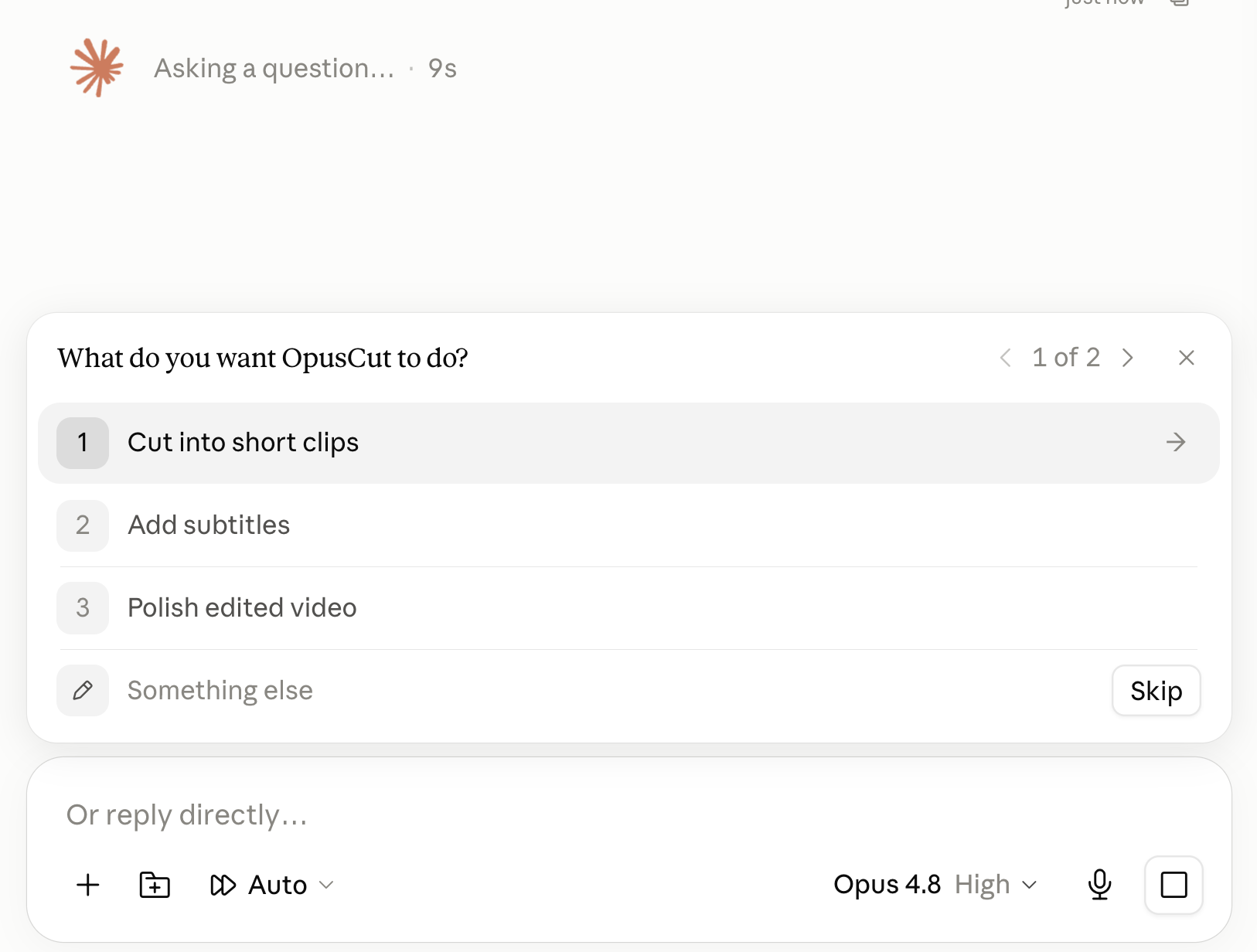
Long video → viral clips
cut_clipOne long video → multiple viral shorts. Great for podcasts, interviews, gaming, livestreams. Source can be a YouTube link, Google Drive, a direct link, or a local file you upload; the AI finds the highlights, cuts vertical shorts, and burns captions.
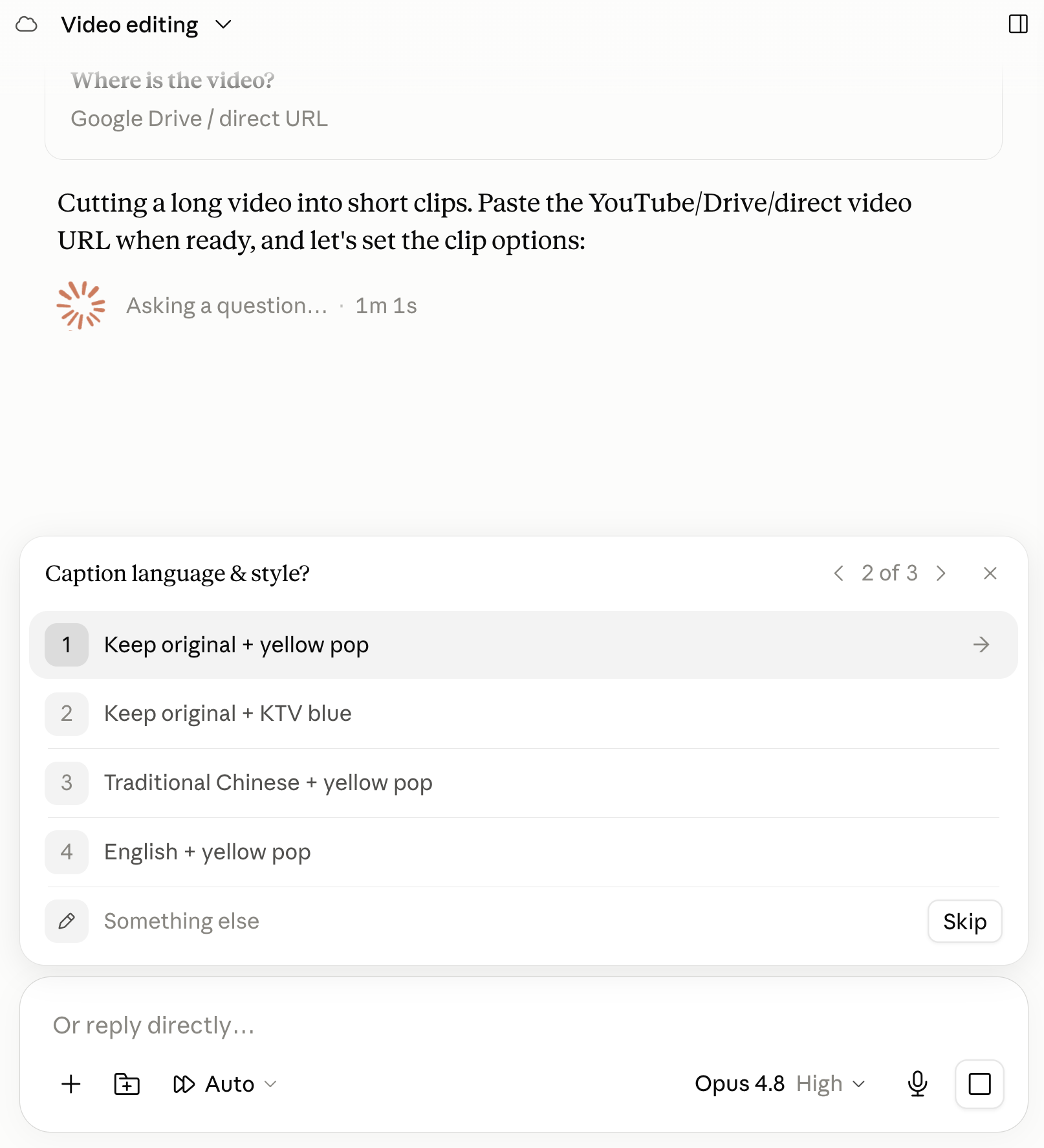
Subtitle the whole video
subtitle_onlyKeep the full video, just add captions (translatable, bilingual EN + 中 supported). No cutting.
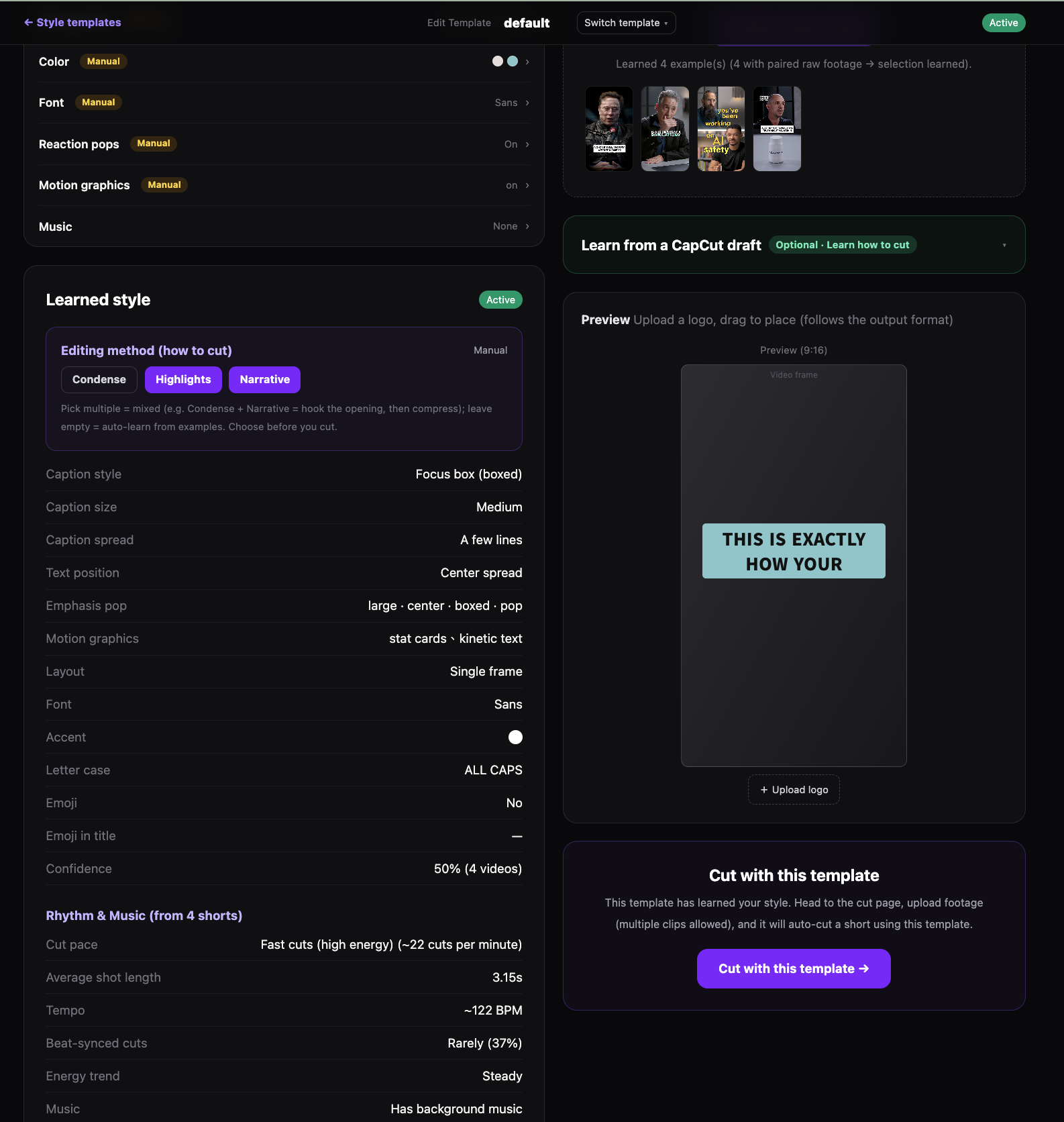
Re-cut in your style
cut_with_my_styleFirst teach OpusCut how YOU cut, then let it auto-cut new footage in your style — not a generic edit. How: on the website's 'Cut your style' page, upload a few shorts you've published; OpusCut learns your pacing (cuts per minute), caption style, selection preferences and whether you use music. Then it cuts new footage with your style template.
Edit in chat, then let OpusCut polish
polish (finish)Add captions + music + AI voiceover + adjust ratio. Key idea: bring in OpusCut, let the AI edit the footage based on what's on screen and in the dialogue; once the rough cut is done, hand it to OpusCut to 'polish' — using beat detection and dialogue analysis to decide how to optimize, add animated captions, and offer AI music to choose from. (Editing is done by a render-capable AI tool such as Claude Desktop / Claude Code; results vary by footage and tool.)
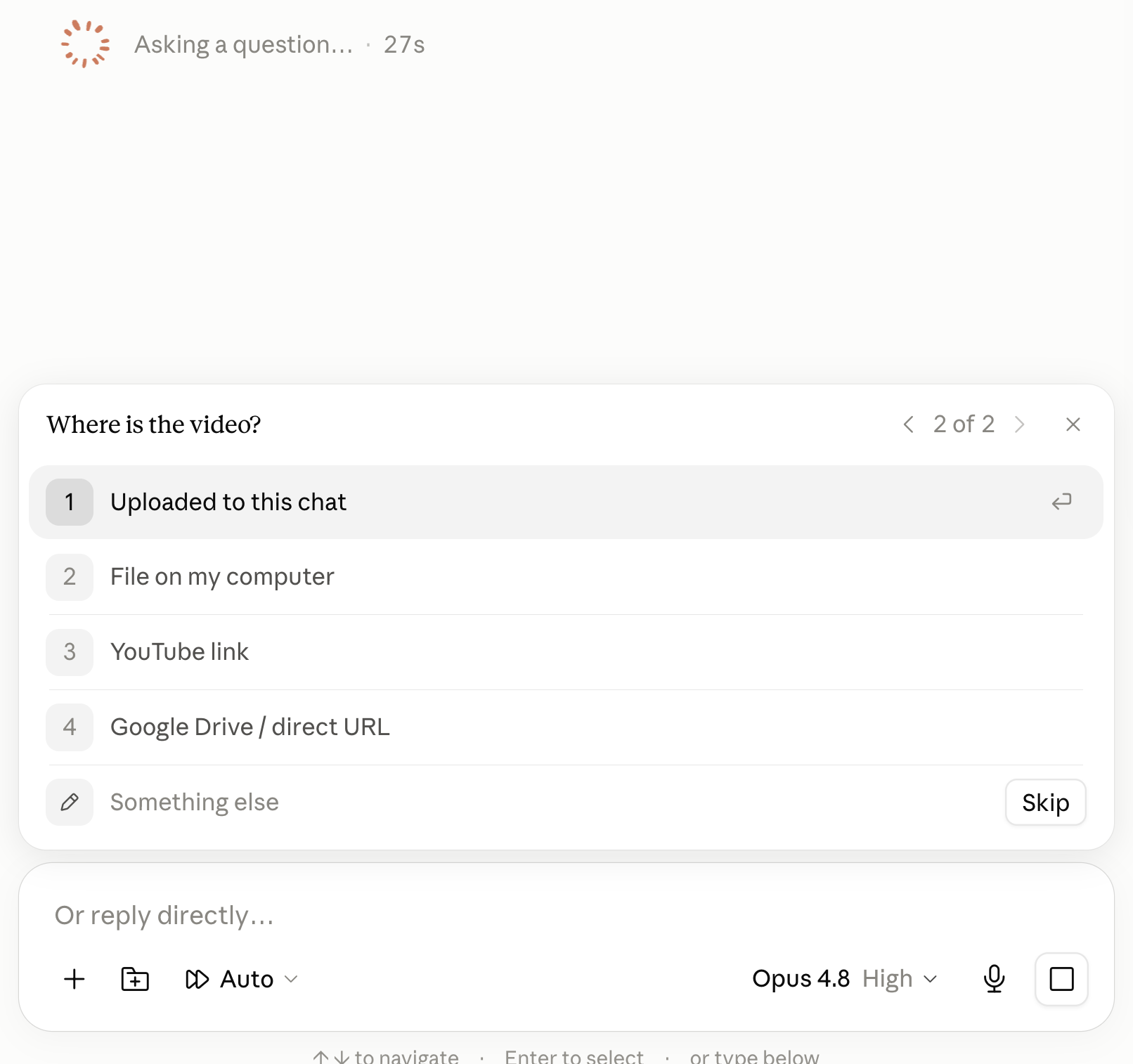
Just answer the AI's questions in this order:
- Already have a URL → give it directly.
- In this chat (uploaded) → ask the AI to upload it to a shareable URL first (e.g. Google Drive shared “anyone with the link”).
- Only raw clips → attach them and tell the AI how to cut; it edits them into one video, then hands it to OpusCut to polish.
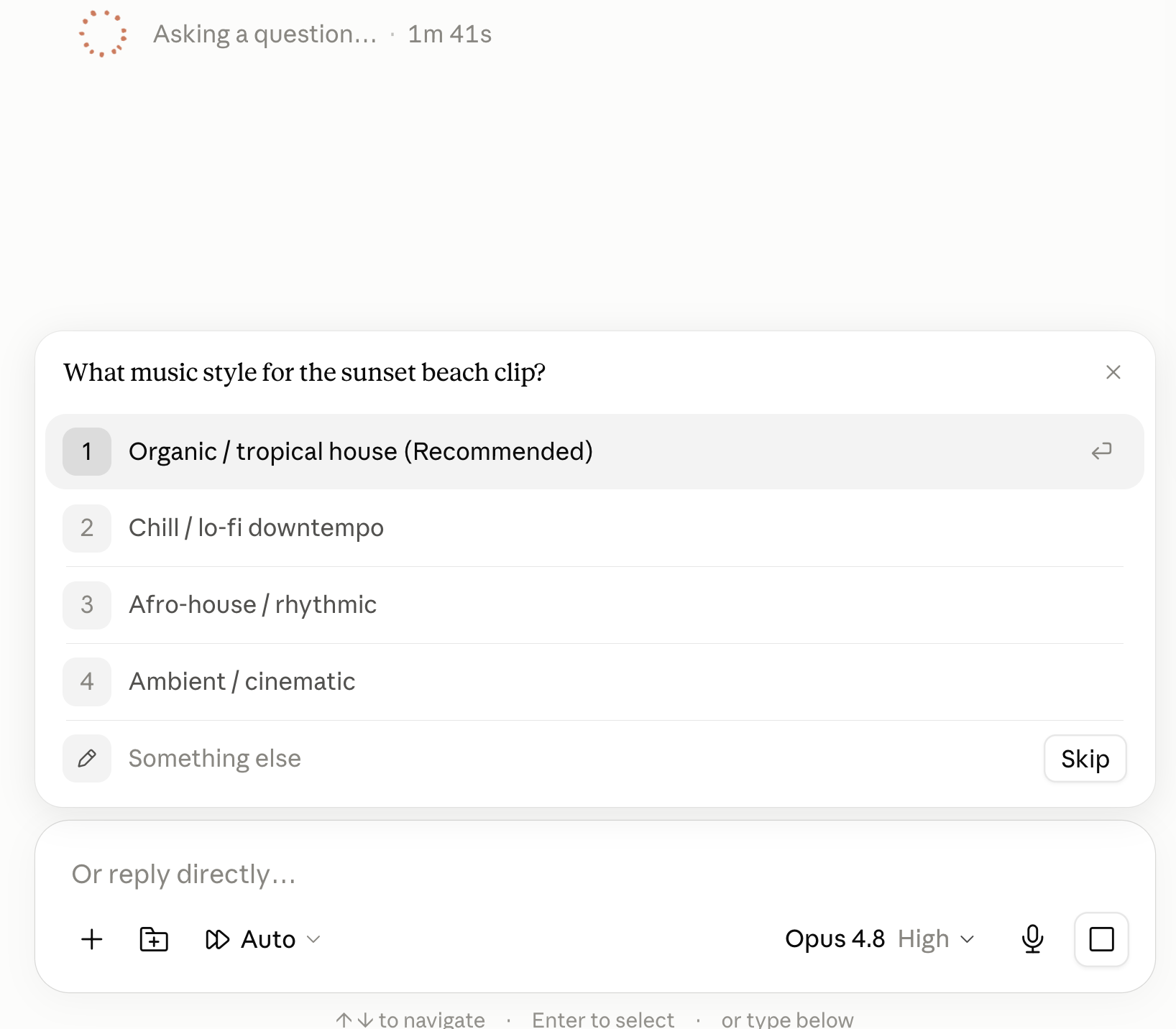
- Narrative: order clips by story; music added afterwards.
- Beat-synced (cut to the music): pick the music first, then cut to its beats (see Step 4).
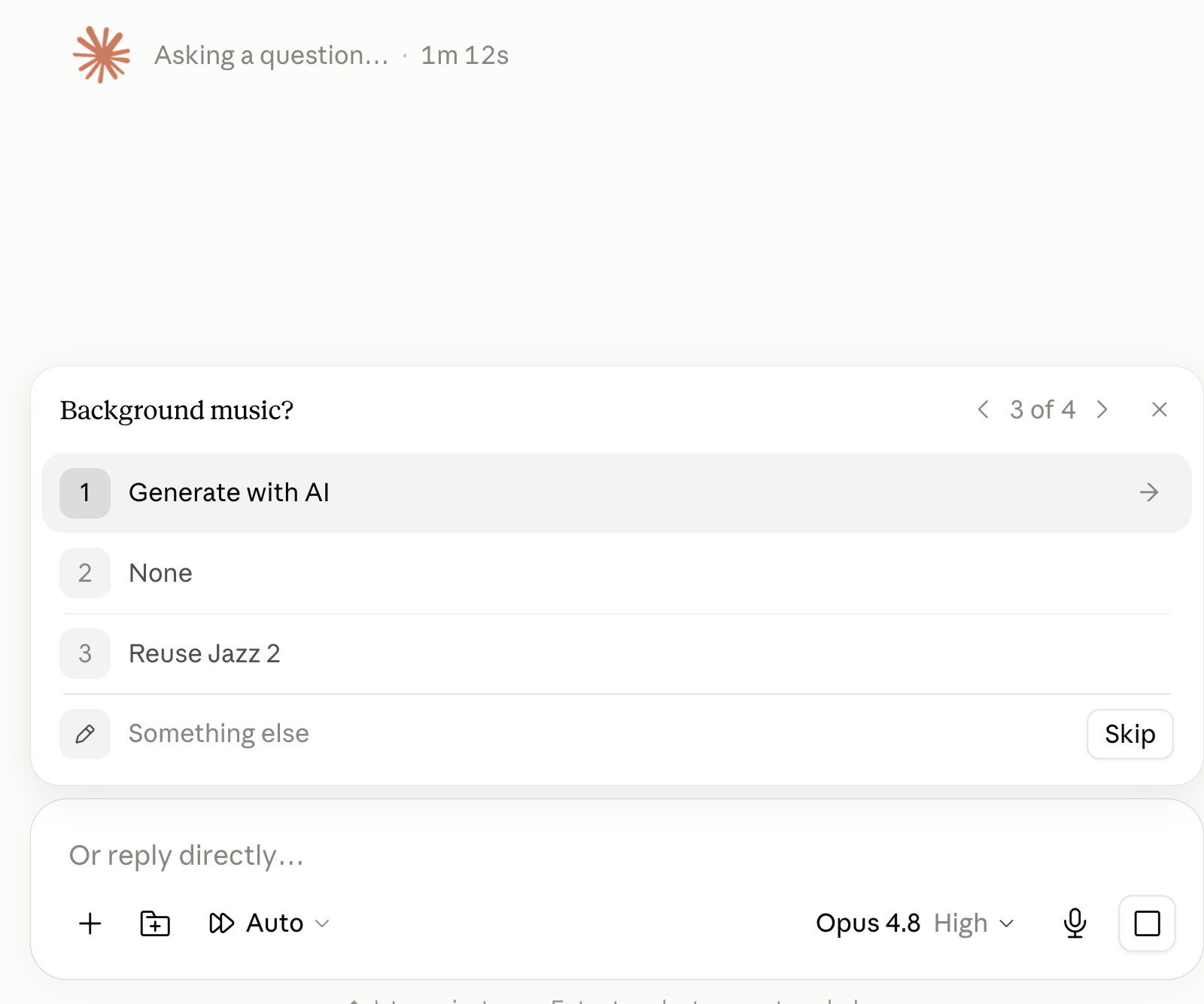
AI-generated: the AI makes 3 options for you to preview and pick.
Your own music: the AI can mix it itself, or upload it to a URL for OpusCut to mix (one or the other — avoid double music).
⭐ Step 5 — always preview before finalizing
After the cut, ask the AI to show you a preview before sending to OpusCut for captions or finalizing — don't let it do everything in one shot.
For long videos, render a draft quality first to check fast, then the final HD:
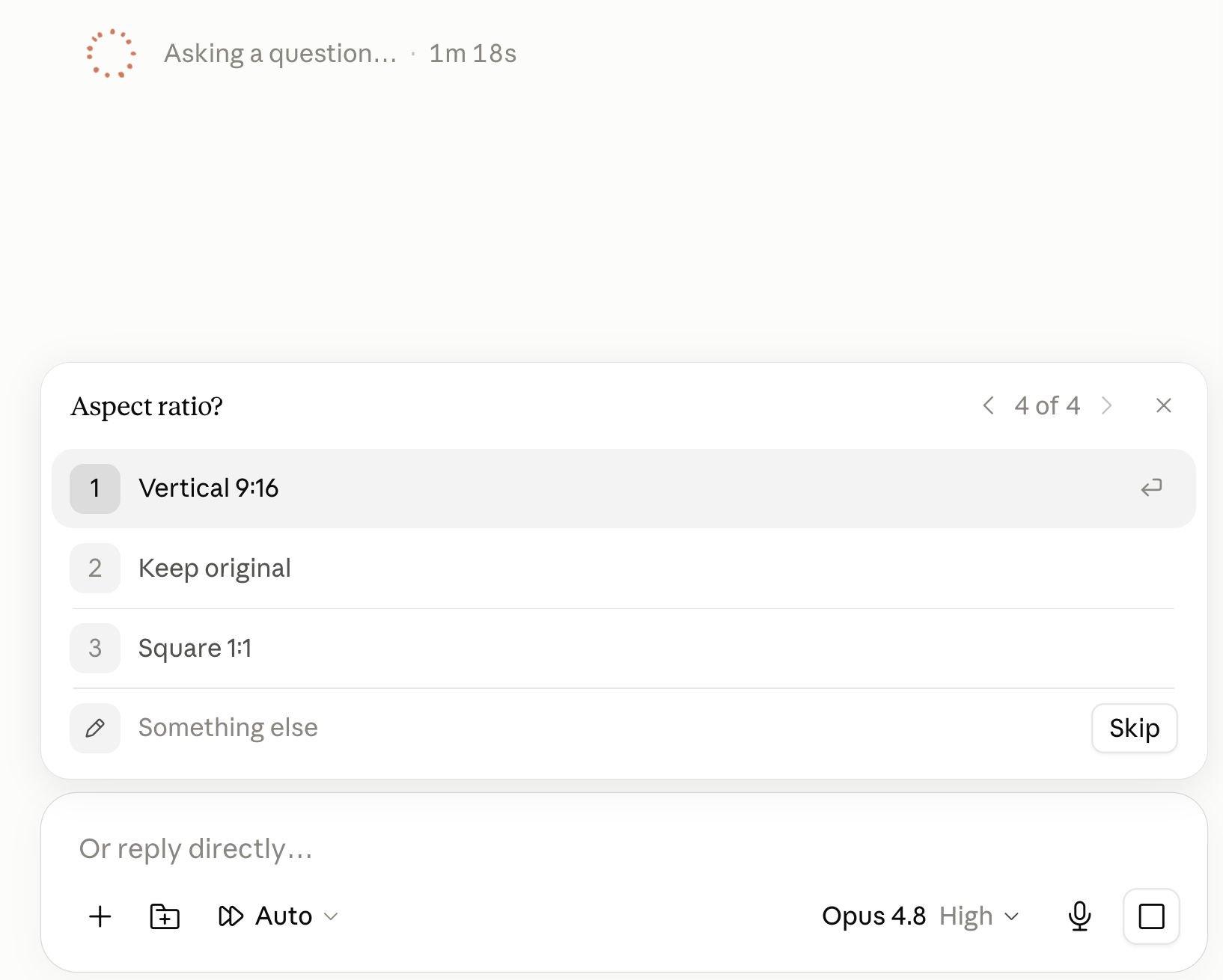
- Yes → hand it to OpusCut for captions (music handled at the same time), and set the output ratio (original / 9:16 / 1:1 / 16:9).
- No → if your AI can render, it stitches + delivers directly (OpusCut only does music / voiceover / beats).
Commands worth remembering
How credits work (roughly)
- Clipping / subtitles / polish: scales with video length.
- AI music: charged per option (3 options = 3×); auto-refunded on failure.
- AI voiceover: charged; auto-refunded on failure.
- Using your own music and beat detection: free.
Not connected yet? Back to the connect guide.