 ×
×Installation guide
in Claude
Also works with Codex · Cursor · ChatGPT

Claude and Codex can plan an edit and rough-cut — but can't get the quality there. Connect OpusCut's MCP and your AI can call OpusCut to cut, caption, add motion graphics, music and AI voiceover, and even learn your editing style — all on your own OpusCut account and credits, no API keys to paste.
What OpusCut × your AI can do
🎬 Long video → viral shorts
One long video → many vertical shorts, captions burned in.
📝 Subtitle a whole video
Keep the full video, add captions — bilingual EN + 中, translatable.
✨ Re-cut in your style
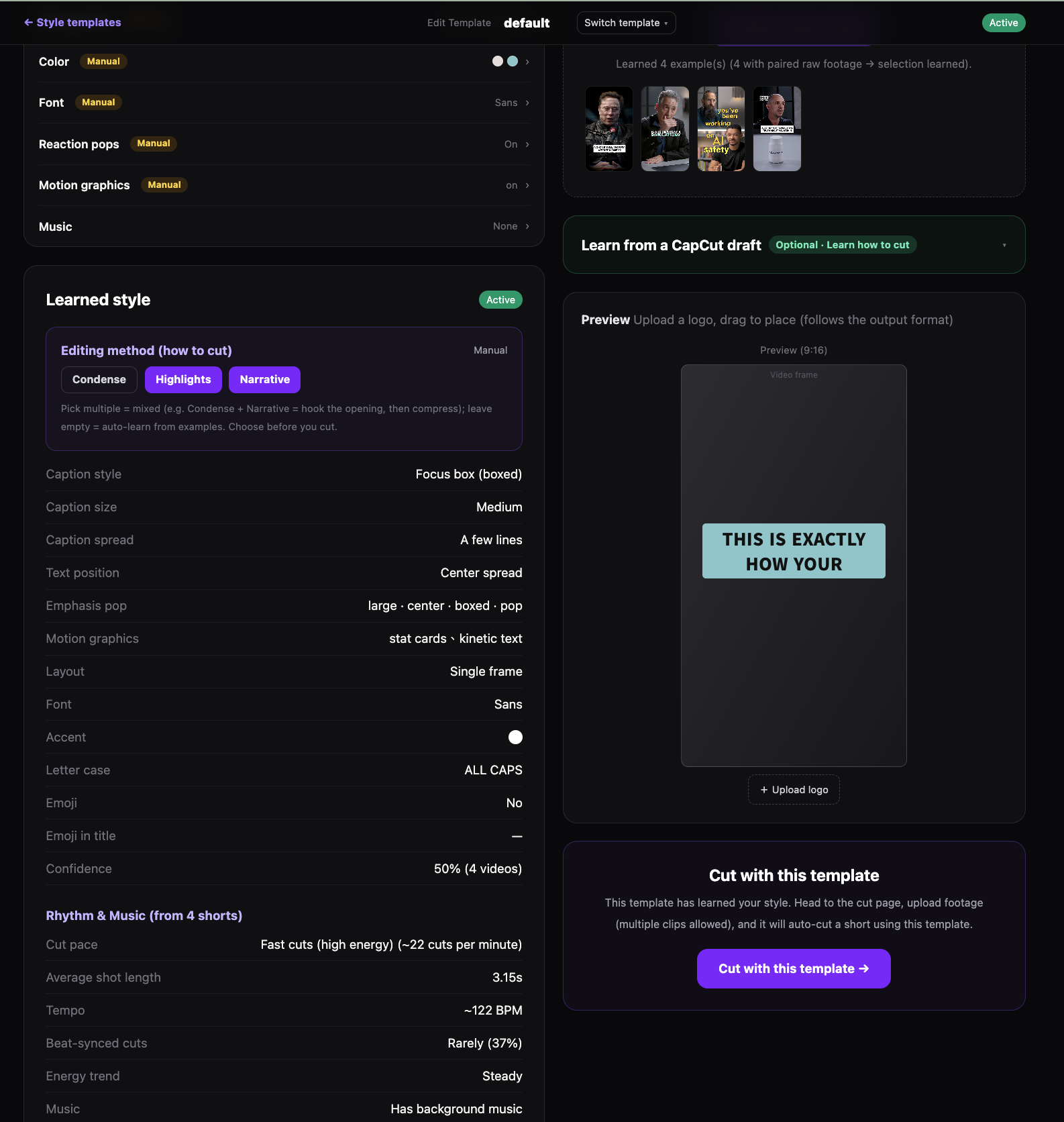
OpusCut learns how YOU cut, then auto-cuts new footage in your style.
🎧 Edit in chat + finish
The AI edits → OpusCut adds animated captions, motion graphics, music & AI voiceover → an upload-ready MP4.
See it in action
Full walkthrough →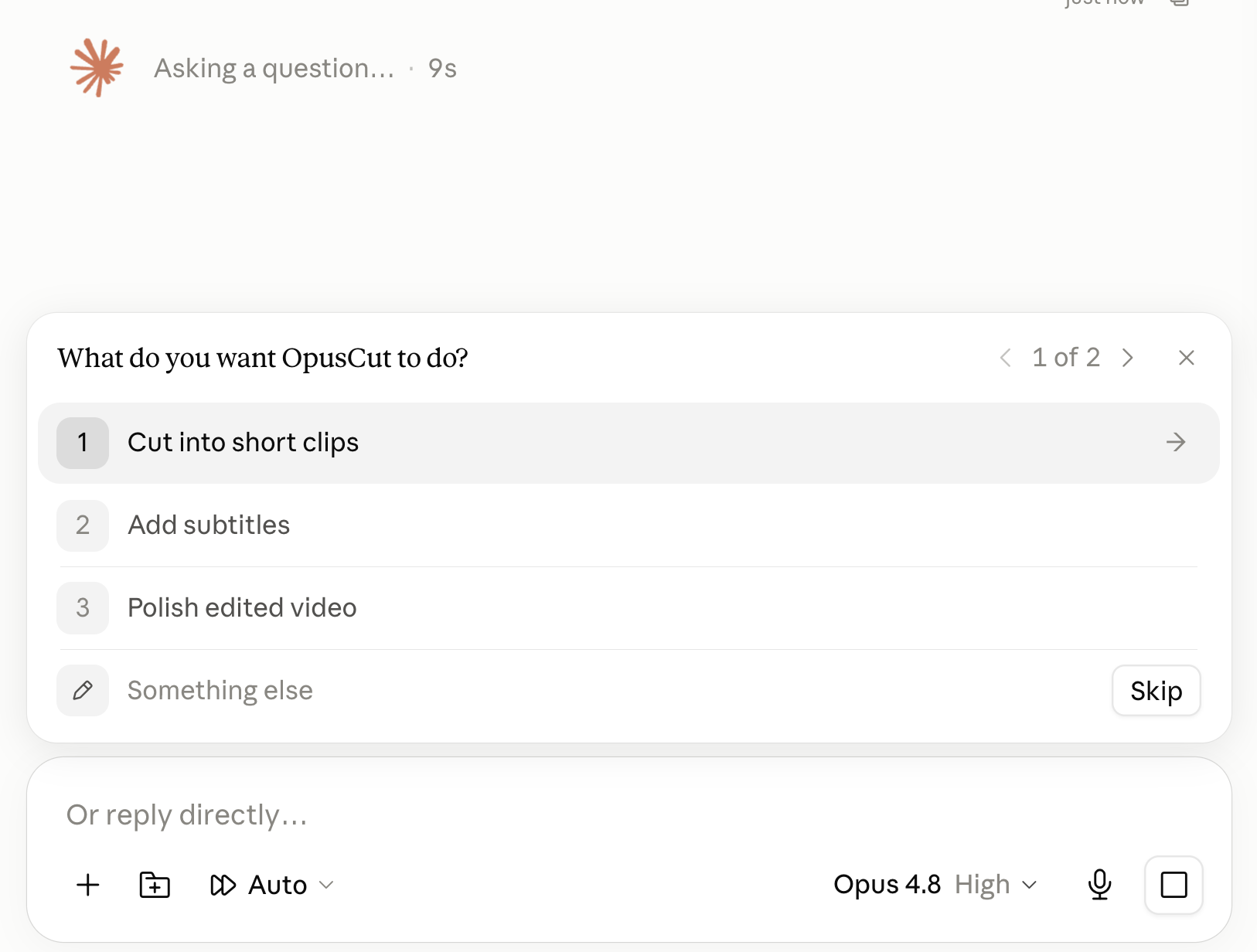
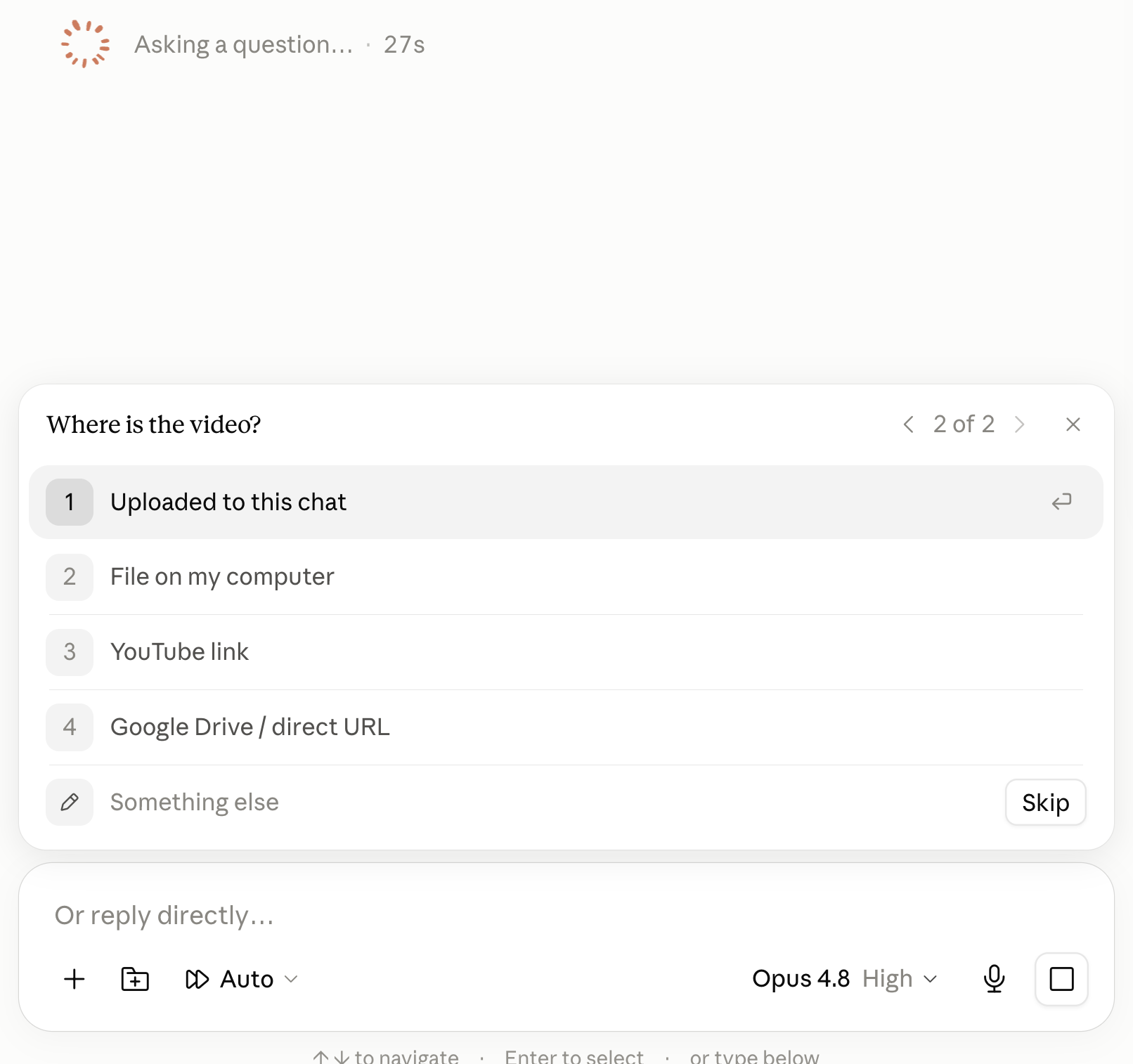
Connect it in your AI tool
One click for Claude & Cursor; copy-paste for the rest. Sign in once with your OpusCut account — no API keys.
One click: copies the URL and opens Claude's “Add custom connector” dialog — just paste.
Run in your terminal:
claude mcp add --transport http opuscut https://mcp.opuscut.app/api/mcp/mcpClick to add (Cursor must be installed), or: Settings → MCP → Add server (Streamable HTTP) → paste the URL
Add to CursorSettings → Connectors / MCP → Add server → paste the URL (needs a connector-capable plan)
The first tool call opens OpusCut sign-in + approval — approve once and you stay connected.
Want the full setup guide, tool reference and troubleshooting? Open the MCP guide →